What is best all-in-one printer for home use?
You probably don’t think much about printers until yours breaks. Then suddenly you’re standing in an electronics store or scrolling through endless Amazon listings, wondering why some printers cost $60 and others cost $400. The truth is, picking a home printer isn’t complicated once you know what matters for your specific situation.
Most people working from home or managing a household need the same basic things: scanning documents for taxes, copying school forms, and printing everything from boarding passes to birthday party invitations. An all-in-one printer handles these jobs without forcing you to own three separate machines. But here’s what trips people up—the initial price isn’t the real cost. The ink or toner cartridges you’ll buy over the printer’s life can easily cost ten times what you paid for the machine itself.
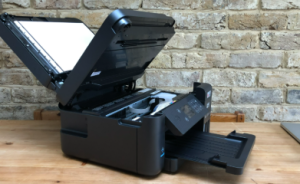
Let’s start with the elephant in the room. Ink costs have gotten ridiculous. A set of replacement cartridges for a typical inkjet printer runs anywhere from $40 to $80, and those cartridges might only last you a few months if you print regularly. Some manufacturers have started offering subscription services where you pay a monthly fee and they automatically ship you ink. Programs like HP Instant Ink or Epson’s ReadyPrint can actually save you money if you print consistently, though you’re locked into their ecosystem. The monthly plans typically start around $1 for 10 pages and scale up from there.
Canon PIXMA printers keep showing up in “best of” lists, and there’s a reason for that. The PIXMA TR8620 sits in that sweet spot where it doesn’t cost a fortune but handles everything a home office needs. It prints on both sides of the paper automatically, which sounds minor until you’re printing a 20-page report. The document feeder holds 20 sheets, so you can scan multiple pages without standing there feeding them one by one. Print quality is solid enough that your photos won’t look washed out, though you wouldn’t use it for professional photography work. The setup connects via WiFi without making you read a manual, and it works with both iPhones and Android phones. You can usually find it on sale somewhere for around $180.
Now, if you’re tired of playing the ink replacement game, consider switching to a laser printer instead. The Brother MFC-L2750DW doesn’t use ink at all—it uses toner, which is basically powder that gets fused onto the paper with heat. A single toner cartridge might cost you $70 or $80, but it lasts for thousands of pages instead of hundreds. People who run small businesses from home or print extensively find that laser printers pay for themselves pretty quickly. This Brother model prints 36 pages per minute, which is lightning fast compared to inkjets that chug along at maybe 10 pages per minute. The initial price sits higher at around $280, but you’re investing in lower operating costs down the line. The only real downside is color laser printers cost significantly more, so this works best if most of your printing is black and white documents.
Epson has taken a different approach with their EcoTank series. Instead of small cartridges that you replace, these printers have large tanks that you refill with bottles of ink. The upfront cost stings a bit—the EcoTank ET-2850 runs about $270—but it comes with enough ink to print around 4,500 black pages or 7,500 color pages. That’s roughly two years’ worth of printing for most households. When you do need more ink, the replacement bottles cost around $50 for a full set, compared to $60 or $70 for traditional cartridges that don’t last nearly as long. You’re basically prepaying for ink, which makes sense if you plan to keep the printer for several years. The print quality matches regular inkjets, though it’s not quite as fast.
HP makes printers that people either love or complain about endlessly. Their all-in-ones like the OfficeJet Pro 9025e work well and include some genuinely useful features like self-healing WiFi that reconnects automatically when your network acts up. But HP really, really wants you to subscribe to their Instant Ink program. They’ll push notifications to your phone about it, include flyers in the box, and generally make it clear that’s their business model now. If you’re okay with a subscription, it works fine. If that bothers you, look elsewhere.
What about those cheap $50 printers you see at Walmart? They exist for a reason—some people barely print anything and just need something that works when they do. The HP DeskJet 2755e or Canon PIXMA MG3620 fall into this category. They’ll handle occasional printing jobs, connect to your phone, and do basic scanning and copying. The catch is they’re slow, the paper trays are small, and the ink cartridges don’t last long. You’ll spend more on replacement ink over a year than you paid for the printer. These make sense if you genuinely only print a dozen pages per month, but they’re false economy for anyone printing regularly.
A few practical things worth considering that don’t show up in spec sheets: Where are you going to put this thing? All-in-ones aren’t small. Most need about 18 inches of width and 16 inches of depth, plus space for the paper tray to extend out the back. Make sure you measure your desk or shelf before ordering. Also think about paper capacity. If you’re constantly refilling a 100-sheet tray, you’ll get annoyed. Printers that hold 250 sheets or more save you that hassle.
The scanner bed size matters more than you’d think. Standard letter-size scanners work fine until you need to scan a tabloid-size document or a large photo. Most home printers top out at 8.5 by 11 inches. The few models that scan larger sizes cost quite a bit more, so only go there if you actually need it.
Automatic document feeders are incredible time-savers if you scan multi-page documents. Without one, you’re opening the lid, placing a page, closing the lid, scanning, repeating for every single page. With a feeder, you stack them all in and walk away. Even a basic 20-sheet feeder makes a huge difference. Look for this feature if you handle paperwork regularly.
Connectivity isn’t as straightforward as it should be. Every printer claims to be wireless, but what they mean varies. Some connect directly to your WiFi network and then any device on that network can print to it. Others use WiFi Direct, where your phone connects directly to the printer without going through your router. Some require you to email documents to a special address and then the printer fetches and prints them. The most reliable setup is standard WiFi network connection, which most modern printers handle without issues. Just make sure your router and printer are on the same network, which sounds obvious but trips people up if they have a guest network enabled.
Phone printing works differently depending on whether you have an iPhone or Android. iPhones use AirPrint, which is built into iOS and works with most modern printers automatically. Android phones mostly use Moto Print or Google Cloud Print’s successor, though Google discontinued Cloud Print and replaced it with a less convenient built-in feature. Some printer manufacturers have their own apps—Brother iPrint&Scan, Canon PRINT, HP Smart—which work on both platforms but add an extra step. The simplest approach is buying a printer that explicitly supports both AirPrint and Moto Print.
Print speed specs are somewhat meaningless because manufacturers measure them under ideal conditions printing draft-quality text. Real-world printing is slower. A printer rated at 15 pages per minute might actually give you 8 or 9 pages per minute when printing normal documents with graphics. Laser printers maintain their speed better than inkjets. If speed matters to you, buy a laser.
Photo printing is a separate category really. All-in-ones can print photos, but dedicated photo printers or higher-end models with six-color ink systems produce noticeably better results. Most people are fine with the photo quality from a decent inkjet all-in-one. It’ll look good enough for a scrapbook or to put in a frame on your desk. If you’re serious about photography, you probably already know you need something specialized.
One last thing about ink that bears repeating since it’s the most expensive part of printer ownership: third-party ink cartridges exist and cost way less than brand-name ones. Canon, HP, and Epson all hate this and their printers sometimes throw error messages when you use them. Some people have no problems with third-party ink, others report clogged print heads or poor quality. It’s a gamble that might save you money or might cost you a new printer. Original equipment manufacturer (OEM) cartridges are expensive for a reason—they’re tested extensively with that specific printer model. Generic ones are hit or miss. If you go the third-party route, buy from a reputable seller with a return policy, not the cheapest option on eBay.
So what’s the actual answer here? For most people working from home or running a household, the Canon PIXMA TR8620 or a similar midrange all-in-one makes the most sense. It costs enough to get decent features without being wasteful, and it’ll handle years of regular use. If you print heavily, especially black and white documents, the Brother MFC-L2750DW laser printer will serve you better despite the higher initial cost. If you’re committed to sticking with one brand long-term, the Epson EcoTank ET-2850 essentially lets you prepay for ink and forget about it for years. There’s no universal “best” printer—there’s the right printer for what you actually need to print, how often you print it, and whether you’re willing to deal with ink subscriptions or refill tanks.
Most printer problems aren’t actually printer problems. They’re network issues, driver issues, or user error. Keep your printer’s firmware updated, make sure your computer or phone has the latest printer drivers installed, and restart both devices when things get weird. That fixes 90% of printing headaches without requiring a support call or a new printer. When something does break, replacement is usually cheaper than repair, which is frustrating but true. These aren’t built to last decades anymore.
The printer market keeps shifting, with manufacturers trying different business models and features. What matters most hasn’t changed though: reasonable ink costs, reliable printing, and hassle-free wireless connection. Find a printer that delivers those three things within your budget and you’ll be fine. Don’t overthink it past that.